Showing posts with label Android Tricks. Show all posts

Friday, June 26, 2015

How to Hide the files in Android device without using any App

We generally hide the files to secure some important files or maintain privacy for the personal information. Today technology become handy and we save all the personal and important information in our mobiles. We Knew that there are some software’s/tools to hide the files in our computer. So how to secure the files in our mobile. As same as like computer, there are some Apps are available in the app market to hide the files in our mobile. But installing these Apps in our mobile will occupy the storage space and may occur performance issues. In order to overcome this constraints, I am going to share you one of the unknown feature existed in ES file Explorer to hide the files in our mobile.


ES file explorer is the one of the most using application in everyone's mobile in the app market.

If you don't have ES file explorer in your mobile then Go to App Store and install. There are many other uses with ES File explorer.

Follow below procedure to hide your files

Step 1: Create any folder with any name.  For example Create a folder "HideTest"


Step 2: Now save all your important files in that it. for example, save all the important files in  "HideTest" 

Ste 3: Go to Setting then select Rename. Now add "." (dot) infront of the name and click OK.

In our instance  rename HideTest  with .HideTest


Now if we see in the File Manager, folder will be hidden


To Un hide this file follow the below step

Step 4: Go to Settings --> Display settings and Un mark  the Show hidden files option.


All the folders that are hidden earlier will be appear again.


Since folder is hidden, it appearance color will change. the folder Icon will be faded. If you remove the dot ( . ) then it will appear like normal folder.

Thanks for reading!!!! Please share the knowledge that you now!!!!

Tuesday, May 5, 2015

Send notifications to your smartphones from computer || Google Trick


Hello Everyone!!!  Technology is become handy. All our daily works are getting done with your hand that means with your smartphone. In this tech world there are more hidden features which are unknown to us. Sometimes we are doing some important work with your laptop/PC and you may need to remember some important meeting schedules. Then you may write this information on stick notes or any other tools which stores in on your computer itself. But what if you write this note on your smartphones to remember this information and smart phones are very easy and fast to access. So you need not to remember all this information and your phone will notify you about your work and it will act as your personal assistant.


So writing the notes in the smartphone can do it in two ways one is writing/creating the notification manually and second one is the most advanced feature and recently introduced by Google i.e., sending the notification to your smartphones from your computer itself. We all know about the first one, and the second one is a tweak which is unknown. Follow the below procedure to know about this feature.

We can use this feature by doing the below two steps

Step 1: Link your smart phone to Google account.

https://support.google.com/websearch/answer/6128427

Step 2: After doing the above step we can start using this feature

This feature includes

1. Send a note or note to self
2. Send directions to my phone
3. Set an alarm

1. Send Note or note to self:

Open www.google.com and type Send a note in the search box and click enter then the below screen will appear.


Type what ever you want to send the note to your smartphone and click on Send notification to my Phone.


2. Send directions to my phone:

Open www.google.com and type Send directions to my phone in the search box and click enter then the below screen will appear.


By default the directions source is "from your phone location" and enter the the destination location then automatically google maps will be opwn on your device.

3. Set an alarm:

Open www.google.com and type Set an Alarm in the search box and click enter then the below screen will appear.


Enter the time when you want to set the alarm on your device then automatically an alarm will be set in your smartphone. Like this we can set up n number of alarms in your smartphone from your computer


Remember you have to login into your google account which is linked to your phone.

Note: If it is not showing any pop-up under search box then add '&gl=us'  at the end of the address bar. If a box doesn't pop up with the option to send information to your phone, try refreshing the page. If you just turned on Google Now, it may take a few minutes for the box to show up

Thanks for reading!!!!..Share the knowledge that you know!!!

Sunday, April 5, 2015

Find your lost mobile with simple trick | one trick - multiple solutions||Android Trick

Hello Tech Lovers!!!...Now a days people are saving the data in their smart phones itself. this data is really most important. You may save your banking details like credit/debit card details internet banking details and most importantly your saving all your friends,family and other important people contacts on your phone.

What If you last your smartphone somewhere???? Then your entire phone data is gone. and whoever found your phone they may misuse your phone for some other purposes. In order to overcome this  today i am going to share you one of the most useful feature provided by android.


If you lost your mobile then  immediately go to this link ( https://www.google.com/android/devicemanager )(If it is asking you to log in into Gmail account then login into the account which is activated for your mobile.) After logged, it will show you the address where your phone is exactly located.


If the address is not able to locate then click on the enable GPS (on the top right side corner). it will enable GPS on your mobile get the exact location of your mobile. Even if it is not worked then go for below three options to save your data further.

 Ring                                                                   Lock                                                          Erase


Ring: To know the advantage of this feature go to this link

Mobile is in silent mode and forgot somewhere in your home??? Trick to find it easily

Lock: When you click on this lock option. it will lock your mobile by resetting the password.


  • It will ask you to set new password -. So that, the person who found your mobile cannot do anything on your mobile.
  • It will also ask you leave a message. - So that, the person who found your mobile can read your message and may return your mobile to you. this message is optional. 
  • It will ask you to provide phone number: So that, the person who found your mobile can call to this number  and return you mobile.


After clicking on the lock button it will show you message that "you successfully locked your mobile"


See the below example screen after you click on Lock button.


Erase: If you think that your phone wont get back to you, then press the Erase button, then all your phone data will be deleted from your phone.

Note: All this feature will work on your mobile only one data connection/wifi is enabled on your mobile (internet is enabled)on your mobile.

If you have any queries please comment your question in the below comment box.


Thanks for reading!!!! Happy Learning!!!

Share the knowledge that you know.!!!


Trick to find silent mode mobile easily in your home.|| Simple Android Mobile Trick

Hello Tech lovers . Today i am going to share you. How to find your mobile in your home.  If your kept it you mobile some where in your home and forget and your mobile is in silent. The very next day you need your phone and don't know where kept it. To over come this type of situation i am going to share you one of the useful android trick,

If you lost your mobile then  immediately go to this link ( https://www.google.com/android/devicemanager )(If it is asking you to log in into Gmail account then login into the account which is activated for your mobile.) After logged, it will show you the address where your phone is exactly located.


If the address is not able to locate then click on the enable GPS (on the top right side corner) . it will enable GPS on your mobile get the exact location of your mobile. Even if it is not worked then
follow below simple steps:


1. Click on the one of the option called RING ,which is appearing below the address bar.
2.  After click on the ring option, again it will ask you to click on ring button. Click on ring button again.
3. Immediately silent mode is disabled and your phone will ring with some phone default ringtone.
4. Simply tap the screen to switch off the ringtone.

To know the amazing features of other options ( LOCK and ERASE ) go to the below link

Find your lost mobile with simple trick | one trick - multiple solutions


Note: All this feature will work on your mobile only one data connection/wifi is enabled on your mobile (internet is enabled)on your mobile.

If you have any queries please comment your question in the below comment box.


Thanks for reading!!!! Happy Learning!!!

Share the knowledge that you know.!!!


Tuesday, March 3, 2015

Why to BUY a mouse? Use your smartphone as mouse for your laptop/PC

Today I am going to share you one of the useful information. Let us assume that if you are watching some video on your system and watching it from two very long distance from your laptop/PC. So if you want to forward the video then you need to go near PC and have to change. If you have wireless mouse then you simply change with it. But it is expensive to buy a wireless mouse.

Now I am going to tell you one of the useful trick to turn your smart phone as mouse for your PC. By following the simple steps you can turn your smart phone to mouse. After following the below steps you can able to access your Laptop/PC from log distances.


Step 1: Go to play store in you mobile and search for Remote mouse ( AndroidDownload here/ Apple store Download here / windows download here)

Step 2: Go to your PC and install the Remote mouse. Download the installation file here

This link will give you all the installation files for different platforms.

Step 3: Now you need to connect to your device with same wifi Network.

Note: this trick will work more accurately, if both the system and smart phone are running over same Wi-Fi network.

Step 4: After successfully installed the Remote mouse application in your PC, open the remote mouse in the system and you will see the IP address and QR code to connect to your device.

Step 5: Now open Remote Mouse app in you device and try to connect to your system by providing QR code and IP address.

After successfully following the above step now your able to access your computer by you device.


Key Feature of this application.

  • Fully Simulated Mouse
  • Magic Trackpad
  • Multi-Touch Gestures
  • Function Keyboard in Landscape Mode (need unlocking)
  • Key Combination Input
  • Media Remote Panel (need unlocking)
  • Adjusting Volume or Changing Slides with Device Volume Buttons
  • Spotify Remote
  • Application Launcher & Switcher
  • Shut Down / Sleep / Restart / Log Off Remotely
  • Numeric Keyboard
  • Remotely Typing with Voice
  • Customizable Interface
  • Connect via IP & QR code
  • Password Protection
  • Works under Wi-Fi and 3G network
  • Compatible with Windows 8, 7, XP, Vista, Mac OSX 10.5+


Thanks For Reading!!! Please share the knowledge that you know!!!!


Monday, February 2, 2015

Share your phone data over WiFi || without using Bluetooth and USB


Hello Tech Readers!!! Today I am going to teach you how to connect your smartphone to the computer without using USB or Bluetooth to share the files.

This trick will work with one simple app installation on your smartphone. Es File Explorer File Manager is the app which gives your phone as PC explore view and provide you many more options.

Step 1: Install Es File Explorer File Manager on your smart phone and open Remote Manager ( Options --> Network --> Remote manager ). and then click on Turn ON .(it may ask you to enable the WiFi tethering on your mobile then click on OK).

Note:  Ensure that WiFi tethering is enabled on your mobile. 

Step 2 : It will generate a FTP  link (FileTransferProtocol ). 


Step 3:  On your PC, turn ON WiFi and connect to your smart phone device ( If it is password protected then enter the password which was set in the WiFi configurations in your mobile).

Step 4: Open your windows explorer and enter the link which is generated on your mobile in the address bar.

Now you will see the list of folders and files which are available on you phone. Now you can transfer any from your PC to phone and vice verse.  


Note: you  can open the same in any Browser. the below image is the reference.


Thank for reading!!!!!!!!!

Share the Knowledge that you know!!!!!!!

Happy Learning!!!!!

Wednesday, January 28, 2015

Use yoUr smartpHone as webcAm for PC

Now a days every one have their own smartphone in hand. Every thing become very easier and simpler with the smartphone technology. Even rapid growth happened in technology still some people are using old Laptops which didn't have WEBCAM feature and if we are using own personal computers, we need to purchase the separate WEBCAM which cost around 20$ - 100$.

To minimize the purchasing cost of WEBCAM for your PC, I am going to tell you one of the usefull feature for you smart phone app which cats as webcam for your PC

Step 1. Go to Google/Android app store and search for DROIDCAM (Download here). Install it in your smart phone. Make sure USD Debugging enabled in your phone.

Step 2.  Download  DroidCam/DroidCamX Wireless Webcam for your PC. this software is availble for Linux and Windows.Install it in your system.

Step 3. Open app in your phone, note the WiFi IP and Port.


Step 4. Now open DroidCam in your system and enter Wifi IP and port and then select connect.

Now you will see the magic in your system.


To know more details about this Please go to below link


Thanks for Reading!!!. Hope you enjoyed this!!!

Wednesday, December 24, 2014

Download youtube videos without any third party(tubemate/video downloader) software

Now a days technology came to your hands and everybody using smartphones. Moreover people who are watching youtube videos in their smart phones. If we want to download the any youtube video into our smart phone, everybody using third party apps like tubemate, youtube video downloads etc...by downloading one more extra app from app store. It effects the lack of memory in-sufficient for the other apps to download and install into our smart phone.

To avoid this type of situations YOUTUBE app facilitates  its users to download the video and can view it in offline. The only thing we need to do is update the youtube app in our smart phones (Instal youtube app into our smart phones if not installed yet). We can see the downloaded videos in the offline tab 


Advantages with new updated youtube app

  1. Need not install any third party apps into our smart phone (Ex tubemate, youtube video dowloader)
  2. Phone RAM space will be minimized.
  3. We can see videos in without internet (Data connection) also once you follow the below steps.
Step 1: Open youtube app in your smartphone and open any video that you want to download.


Step 2: Chose the download button as shown in the below snap


Step 3: Then it will ask you for the format and quality of video which you want to download.(it will also show you the size of video). After selecting the format and quality, your video will start downloading automatically.


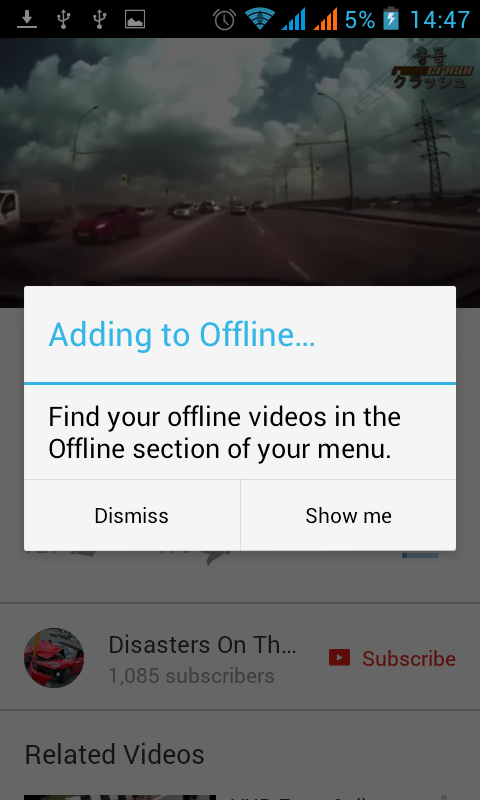
Step 4:  After downloaded video successfully, it will pop like "Find your offline video in the offline selection of menu" click on Show me.


Step 5: offline videos can be viewed by selecting offline tab in the menu bar.


Thanks for reading!!!!!!!!!

Watch youtube videos in offline - without internet

Now a days technology came to your hands and everybody using smartphones. Moreover people who are watching youtube videos in their smart phones. If we want to download the any youtube video into our smart phone, everybody using third party apps like tubemate, youtube video downloads etc...by downloading one more extra app from app store. It effects the lack of memory in-sufficient for the other apps to download and install into our smart phone.

To avoid this type of situations YOUTUBE app facilitates  its users to download the video and can view it in offline. The only thing we need to do is update the youtube app in our smart phones (Instal youtube app into our smart phones if not installed yet). We can see the downloaded videos in the offline tab 


Advantages with new updated youtube app

  1. Need not install any third party apps into our smart phone (Ex tubemate, youtube video dowloader)
  2. Phone RAM space will be minimized.
  3. We can see videos in without internet (Data connection) also once you follow the below steps.
Step 1: Open youtube app in your smartphone and open any video that you want to download.


Step 2: Chose the download button as shown in the below snap


Step 3: Then it will ask you for the format and quality of video which you want to download.(it will also show you the size of video). After selecting the format and quality, your video will start downloading automatically.


Step 4:  After downloaded video successfully, it will pop like "Find your offline video in the offline selection of menu" click on Show me.


Step 5: offline videos can be viewed by selecting offline tab in the menu bar.


Thanks for reading!!!!!!!!!

Sunday, October 12, 2014

Use your Smartphone as youtube TV Remote - simple trick

Hello Tech readers today I am going to share you one of the advanced technology that has ever introduced by YOUTUBE Tv.
You can use you Smartphone like a Remote to play youtube videos. If you follow the below simple steps you can pause your video from far distance from your PC/Laptop.

Step1 : Go to Youtube Tv (https://www.youtube.com/tv)  from your PC/Laptop
Press up arrow button on the keyboard two times, a search icon will appear and then immediately click enter. The following screen will appear.


Note down the code provided by youtube for you to connect to other devices.

Step2 : Go to your Smartphone and open youtube app then go to settings.


Step 3: Go to Connect TVs and then Add TV


Step 4: Then enter code here and click Add button

Now a symbol will appear on the top of your mobile device like as in the below snap


Now your PC is connected to your Device. And the below screen show you device name.


Step 5: Try to search any video in your Smartphone app to play. Automatically it will play on your PC.


Now you can pause or play  any videolink and follow tge m a far place from your PC/Laptop.


Note:  It works for PC to PC alsi. To try this click on the below link and follow the same peocedure


Thanks for reading and share this to you friends.


Saturday, August 9, 2014

USE ANDROID SMART MOBILE PHONE AS MODEM FOR PC


Hello readers, Now i am going to tell you a wonder full trick about ANDROID smart Mobile. we can use our android mobile as modes for PC to connect internet.

Method 1

1. Enable mobile data for your moble
2. Connect the mobile to PC via USB cable
3. Go to Settings --> Tethering and Portable HotSpot (In some devices go to More then  Tethering and Portable Hotspot )--> Enable USB tethering.
4. Now you can use internet from PC.

Method 2

1. Go to Settings --> Tethering and Portable HotSpot (In some devices go to More then Tethering and Portable Hotspot )--> Enable Wi-Fi hotspot 
2. From PC you can connect to Wi-Fi and use internet From in PC. here you can set password in Configure Wi-Fi hotspot settings for safety purpose.


Friday, March 7, 2014

Unlock Android Pattern Lock without requesting pattern reset via email


1. phone want you to enter the user email id you enter in the play store.
2. you don’t know the email id.
3.Then just don’t worry just follow these steps.

Step 1: First switch off you android phone and then wait for second to switched of it.
Step 2: Then first click Up Volume Key and hold it.

Step 3: At the same time click on home button and hold it. (you have to do step 2 and step 3 at the same time)
Step 4: then press the power button and after is started just release it. and then you can see you enter in the secret android menu you never see it before.
Step 5: just click on home button then you will see the list of repair options provided for you. 


press volume up and down buttons to choose the options in the menu (because your touch screen will no work here.)


Step 6: then just go to third option named as DELETE ALL USER DATA.
then it takes some time.


Your phone will be started and the unlock pattern problem is fixed. 


Please share your comments and views regarding the above procedure. Happy to assist you!!!!!!.