Showing posts with label Internet Tricks. Show all posts

Friday, May 1, 2015

Get faster maps using Google LITE mode || Google Lite


Hello Everyone!!!!! When ever we go to new places we don't the exact locations of a particular place. So we generally open Google map and search the location. But sometimes this takes so much time to load the location of the page and this is because of some extra feature added to the present Google maps, like loading the 3D images and Earth view, Showing your computer’s location on the map, measuring the distance between places,coordinates of the routes, Draggable routes, and etc. These newly added features will take more time to load the page if you are having the low internet connection.

To increase the search speed and to access the location in the maps more fast, we have to remove all the features from the existed application and this can not be possible. But technically we can stop these features by using the Google LITE mode

Trick #1:

Go the below Google maps link.


In the beginning of the search box and click on menu symbol (with horizontal bars). Now you will see the LITE mode switched on your device.


Now your map page is more faster than earlier. It will exclude all the below mentioned features from the map page loading and run faster while searching any location.
  • Seeing 3D imagery and Earth view
  • Showing your computer’s location on the map
  • Setting home and work
  • Searching nearby, measuring the distance between places, and getting coordinates
  • Reporting a map data problem in Google Maps
  • Embedding a map
  • Sending a place to your car
  • Viewing My Maps in Google Maps
  • Draggable routes
If you want to revert back to the present Google maps then click on "Switch back to full maps"


Trick #2:

To get more faster  then click on the below link and you will see the old version of Google which doesn't contain any of the above features so it will be faster to search.


Generally, the previous version of Google maps are more faster than the present Google maps. So Some times its better, do not upgrade/update the changes of any app/software if its working well and good.

Note: Second trick is more faster than first trick, and it will also works in our smartphones

Thanks for reading..!!!!.. Share the knowledge that we you know..!!!!.. Thanks for reading..!!!!!!!..

Friday, April 17, 2015

Browse websites without internet || Using Chrome browser


Hello everyone!!! In Previous posts I  explained how to watch youtube videos in offline mode (i.e without internet) Imagine If we can browse any webpage in offline, that means browse any webpage without internet. Then that would be a very awesome tweak Do you believe  that, Is this possible? Answer is NO. Now imagine If we can browse the webpages in offline which were opened recently, Do you believe that, Is this possible? Answer is YES. You can browse the websites without internet by using chrome browser in your System/Mobile. This trick will work for the websites which are opened recently in chrome browser.

This trick will also useful, when you are browsing for some important websites and suddenly your internet connection is disabled in your system due to some technical issues. Then by using this below chrome feature you can reload recently opened pages and continue your work


Step 1: Open chrome browser then copy paste the chrome://flags// in the address and press enter. A list of options will appear on the screen.


Step 2: Try to search "Enable Offline Load Stale Button" by using Ctrl+F(find)


Step 3: Change the value in the drop down box from Default to Enable.

Step 4: Now browser will ask you relaunch the entire browser then click 'relaunch now'.

Step 5: Now try to open any webpage, for example www.tekitricks.blogspot.com. Now this page is stored in your local system.


Step 6: Disconnect the internet in your and reopen the earlier page that you opened i.e., www.tekitricks.blogspot.com. A normal error page will appear with some "show saved copy". After clicking on this, again the page will open from the local memory.


Note : This trick will only work for pages which are opened recently in chrome browser. Because when ever you open the any webpage, browser will store the page in the local memory(browsers local cache memory)and the size of this local memory is very less(say 2MB to 4MB). so the next time you try to open the same page without internet then browser will bring the page which stored in browsers local cache memory and display. This trick will work for all the devices which are having the chrome browser.

Thanks For Reading!!!! Share the knowledge that you know!!!!!.


Tuesday, April 14, 2015

Know someones hidden password behind the asterisks ****** ||

Hello Everyone!!! Most of the people want to know, what other people's password but as a person's confidentiality,it cover with asterisk symbol (****). So if you follow the below procedure you can able to read password under asterisks (*****). This is simple, funny and very easy to learn. People who are having web technologies knowledge can easily understand this trick.


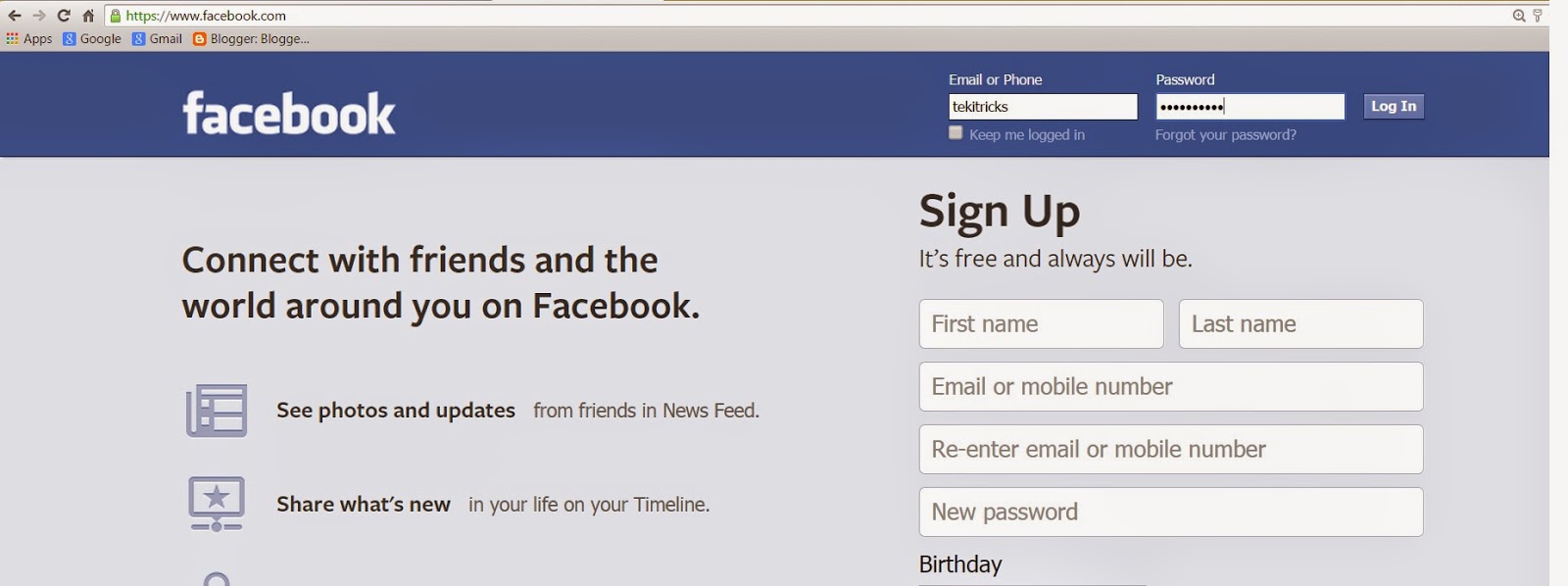
Step 1 : Open any browser ( Chrome or Internet Explorer or Mozilla Firefox etc., )in your computer and go to any log-in page and sign-in. Lets consider Facebook login page. Go to www.facebook.com and enter username and password. As you know whatever you type in the password filed, it shows the asterisks (*****) symbols.

Note: Don't press enter after you entered the username and password.


Step 2: Press F12 . A code (debugging)window open on the right side or bottom parts of the browser.

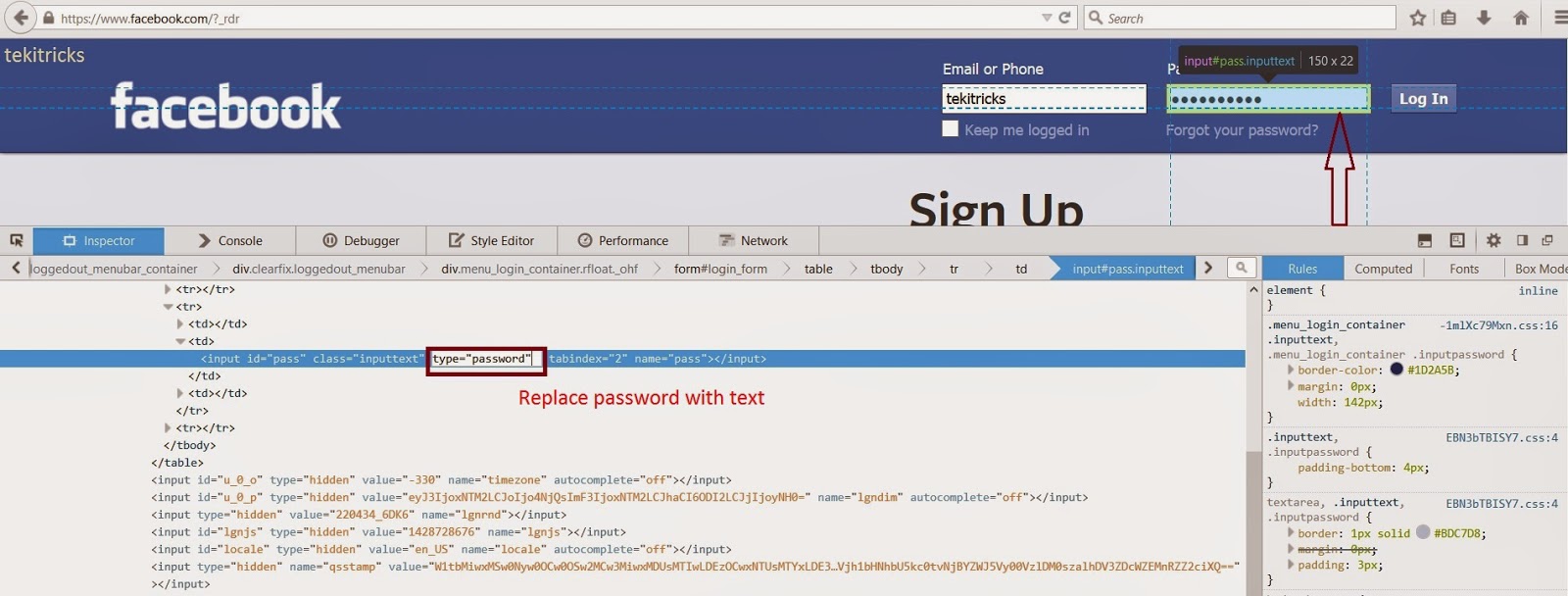
Step 3: Go to Elements/Inspector tab (Here I am using Chrome browser) in debugging window. Then try to search type=”password” using the Ctrl+F (Find) command. Because of this command your password will appears in asterisks (****).


Step 4: Replace the type=”password” with type=”text” and then press Enter. Immediately your password will appear in text format in that field.


Thanks for reading!!! Share the knowledge that you know!!!! Keep reading !!!

Sunday, April 5, 2015

Find your lost mobile with simple trick | one trick - multiple solutions||Android Trick

Hello Tech Lovers!!!...Now a days people are saving the data in their smart phones itself. this data is really most important. You may save your banking details like credit/debit card details internet banking details and most importantly your saving all your friends,family and other important people contacts on your phone.

What If you last your smartphone somewhere???? Then your entire phone data is gone. and whoever found your phone they may misuse your phone for some other purposes. In order to overcome this  today i am going to share you one of the most useful feature provided by android.


If you lost your mobile then  immediately go to this link ( https://www.google.com/android/devicemanager )(If it is asking you to log in into Gmail account then login into the account which is activated for your mobile.) After logged, it will show you the address where your phone is exactly located.


If the address is not able to locate then click on the enable GPS (on the top right side corner). it will enable GPS on your mobile get the exact location of your mobile. Even if it is not worked then go for below three options to save your data further.

 Ring                                                                   Lock                                                          Erase


Ring: To know the advantage of this feature go to this link

Mobile is in silent mode and forgot somewhere in your home??? Trick to find it easily

Lock: When you click on this lock option. it will lock your mobile by resetting the password.


  • It will ask you to set new password -. So that, the person who found your mobile cannot do anything on your mobile.
  • It will also ask you leave a message. - So that, the person who found your mobile can read your message and may return your mobile to you. this message is optional. 
  • It will ask you to provide phone number: So that, the person who found your mobile can call to this number  and return you mobile.


After clicking on the lock button it will show you message that "you successfully locked your mobile"


See the below example screen after you click on Lock button.


Erase: If you think that your phone wont get back to you, then press the Erase button, then all your phone data will be deleted from your phone.

Note: All this feature will work on your mobile only one data connection/wifi is enabled on your mobile (internet is enabled)on your mobile.

If you have any queries please comment your question in the below comment box.


Thanks for reading!!!! Happy Learning!!!

Share the knowledge that you know.!!!


Trick to find silent mode mobile easily in your home.|| Simple Android Mobile Trick

Hello Tech lovers . Today i am going to share you. How to find your mobile in your home.  If your kept it you mobile some where in your home and forget and your mobile is in silent. The very next day you need your phone and don't know where kept it. To over come this type of situation i am going to share you one of the useful android trick,

If you lost your mobile then  immediately go to this link ( https://www.google.com/android/devicemanager )(If it is asking you to log in into Gmail account then login into the account which is activated for your mobile.) After logged, it will show you the address where your phone is exactly located.


If the address is not able to locate then click on the enable GPS (on the top right side corner) . it will enable GPS on your mobile get the exact location of your mobile. Even if it is not worked then
follow below simple steps:


1. Click on the one of the option called RING ,which is appearing below the address bar.
2.  After click on the ring option, again it will ask you to click on ring button. Click on ring button again.
3. Immediately silent mode is disabled and your phone will ring with some phone default ringtone.
4. Simply tap the screen to switch off the ringtone.

To know the amazing features of other options ( LOCK and ERASE ) go to the below link

Find your lost mobile with simple trick | one trick - multiple solutions


Note: All this feature will work on your mobile only one data connection/wifi is enabled on your mobile (internet is enabled)on your mobile.

If you have any queries please comment your question in the below comment box.


Thanks for reading!!!! Happy Learning!!!

Share the knowledge that you know.!!!


Monday, February 16, 2015

First AnimaTed syMbol in WhatsapP!!!!! Whatsapp Trick

Hello Tech Readers!!. Most of us are using smartphones and whatsapp become the most needy app in each smartphone. Because whatsapp is only app most of the people are connected stay in touch with each other. Everyday when we sharing our thoughts, views and some funny conversation with our dear one with whatsapp symbols/emoji's. But this emotion's were not animated(symbols wont move  ). So to share our emotions with the most advanced/animated symbols in the whatsapp there so many third party apps in the app store which provides you animated symbols to share.

Now I am going to tell the most unknown information about the whatsapp. Whatsapp has ONE Animated symbol which appear and feels you like animated symbol on the screen 


The symbol which is in HEART shape (red heart)


Note: This animated symbol will work only for single instance that means you have to press the symbol once and enter .It wont work for multiple times in single message like as below.


Thanks for Reading!!!!!!!!Enjoy Learning!!!!!!!

Keep Reading other posts !!!!!!!!!! Share the knowledge that you know!!!!!!

Sunday, February 15, 2015

Watch facebook's user picture even you are blocked!! Most Unknown feature about facebook


Hello Friends!!! Now i am going to tell you one of the cool tricks for 'FACEBOOK'. This trick will work for to view the others profile pictures without having the account. But we need to have the account name of who ever we want to see. Please follow the below 

Procedure:

copy the below path and past it in browser.


when you paste the above URL below code will appear on the browser screen. (Ignore the below code)

"{
   "error": {
      "message": "(#803) Some of the aliases you requested do not exist: YOUR_USERNAME",
      "type": "OAuthException",
      "code": 803
   } 
}"

Replace YOUR_USERNAME in the above URL with the profile ID.


Now you will see the magic on your screen with the profile picture of the person you want

Example:


the result will be


 Thanks for reading !!!!!!

Share the knowledge that you know!!!!!! :)  :)  :) 

Wednesday, December 24, 2014

Download youtube videos without any third party(tubemate/video downloader) software

Now a days technology came to your hands and everybody using smartphones. Moreover people who are watching youtube videos in their smart phones. If we want to download the any youtube video into our smart phone, everybody using third party apps like tubemate, youtube video downloads etc...by downloading one more extra app from app store. It effects the lack of memory in-sufficient for the other apps to download and install into our smart phone.

To avoid this type of situations YOUTUBE app facilitates  its users to download the video and can view it in offline. The only thing we need to do is update the youtube app in our smart phones (Instal youtube app into our smart phones if not installed yet). We can see the downloaded videos in the offline tab 


Advantages with new updated youtube app

  1. Need not install any third party apps into our smart phone (Ex tubemate, youtube video dowloader)
  2. Phone RAM space will be minimized.
  3. We can see videos in without internet (Data connection) also once you follow the below steps.
Step 1: Open youtube app in your smartphone and open any video that you want to download.


Step 2: Chose the download button as shown in the below snap


Step 3: Then it will ask you for the format and quality of video which you want to download.(it will also show you the size of video). After selecting the format and quality, your video will start downloading automatically.


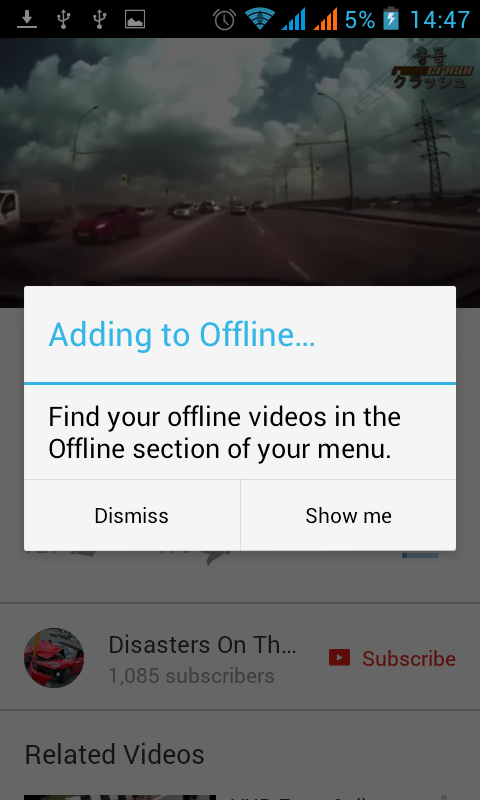
Step 4:  After downloaded video successfully, it will pop like "Find your offline video in the offline selection of menu" click on Show me.


Step 5: offline videos can be viewed by selecting offline tab in the menu bar.


Thanks for reading!!!!!!!!!

Watch youtube videos in offline - without internet

Now a days technology came to your hands and everybody using smartphones. Moreover people who are watching youtube videos in their smart phones. If we want to download the any youtube video into our smart phone, everybody using third party apps like tubemate, youtube video downloads etc...by downloading one more extra app from app store. It effects the lack of memory in-sufficient for the other apps to download and install into our smart phone.

To avoid this type of situations YOUTUBE app facilitates  its users to download the video and can view it in offline. The only thing we need to do is update the youtube app in our smart phones (Instal youtube app into our smart phones if not installed yet). We can see the downloaded videos in the offline tab 


Advantages with new updated youtube app

  1. Need not install any third party apps into our smart phone (Ex tubemate, youtube video dowloader)
  2. Phone RAM space will be minimized.
  3. We can see videos in without internet (Data connection) also once you follow the below steps.
Step 1: Open youtube app in your smartphone and open any video that you want to download.


Step 2: Chose the download button as shown in the below snap


Step 3: Then it will ask you for the format and quality of video which you want to download.(it will also show you the size of video). After selecting the format and quality, your video will start downloading automatically.


Step 4:  After downloaded video successfully, it will pop like "Find your offline video in the offline selection of menu" click on Show me.


Step 5: offline videos can be viewed by selecting offline tab in the menu bar.


Thanks for reading!!!!!!!!!

Sunday, October 12, 2014

Use your Smartphone as youtube TV Remote - simple trick

Hello Tech readers today I am going to share you one of the advanced technology that has ever introduced by YOUTUBE Tv.
You can use you Smartphone like a Remote to play youtube videos. If you follow the below simple steps you can pause your video from far distance from your PC/Laptop.

Step1 : Go to Youtube Tv (https://www.youtube.com/tv)  from your PC/Laptop
Press up arrow button on the keyboard two times, a search icon will appear and then immediately click enter. The following screen will appear.


Note down the code provided by youtube for you to connect to other devices.

Step2 : Go to your Smartphone and open youtube app then go to settings.


Step 3: Go to Connect TVs and then Add TV


Step 4: Then enter code here and click Add button

Now a symbol will appear on the top of your mobile device like as in the below snap


Now your PC is connected to your Device. And the below screen show you device name.


Step 5: Try to search any video in your Smartphone app to play. Automatically it will play on your PC.


Now you can pause or play  any videolink and follow tge m a far place from your PC/Laptop.


Note:  It works for PC to PC alsi. To try this click on the below link and follow the same peocedure


Thanks for reading and share this to you friends.


Monday, September 15, 2014

Want to play with google images??

Hi friends, today I am going to tell you one of the unknown feature which is providing by worlds largest search engine GOOGLE. In some situations when ever your really exhausted with your work and your internet is also not working except google search page and it may give you a big irritation, so you can simply play with google images  by doing below

Open Google Images and enter  "Atari Breakout" in the search bar and wait for two seconds then google will automatically convert into a video game as shown in the below figure.


Note : if you are completed the screen then google automatically gives another round with different images

           
                  After complete the game you can also share your score with your friends


Thanks for reading. share the knowledge that you know


Tuesday, August 19, 2014

How to generate Wi-Fi hot spot in windows 7 or 8 without any software Part-3

Common error while generating Hotspot from your system

In previous articles I have explained what are the pre-configurations(How to generate Wi-Fi hot spot in windows 7 or 8 without any software Part-1) and how to start WiFi Hotspot in your system(How to generate Wi-Fi hot spot in windows 7 or 8 without any software Part-2). Now I am going to explain most common error while connecting. In some situations you may get error like "The hosted network couldn't be started.The group or resource is not in the correct state to perform the requested operation." as shown in the below screenshot


 Solution:


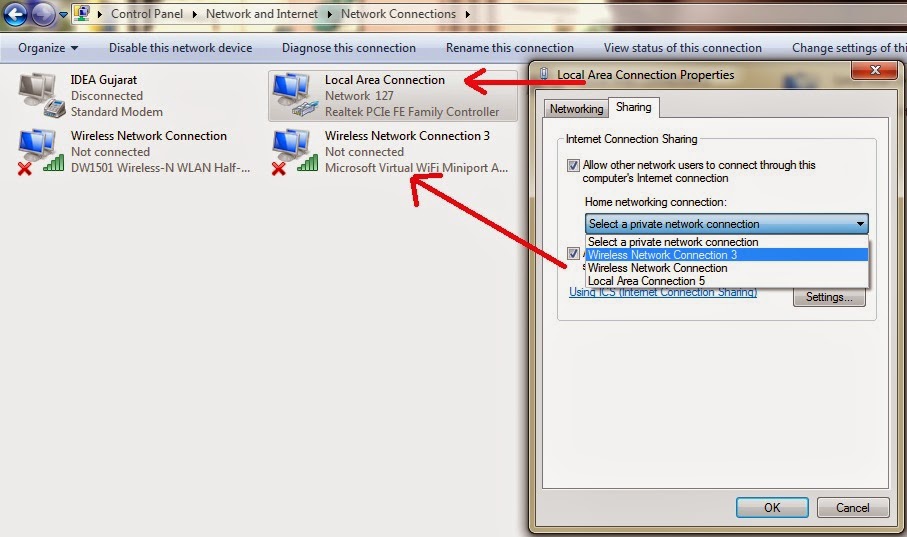
  • Go to Control Panel--> Network and Internet -> Network Connections
  • In Properties of local area connection and go to sharing tab and mark on "Allow other network users to connect through this computer's Internet connection" checkbox (as like in below screen shot). Make sure that your Wireless network connection in enable mode. then press OK. 

   Now you can happy to use wifi in smartphone devices.


How to generate Wi-Fi hot spot in windows 7 or 8 without any software Part-2


Creating WiFi Hot Spot:

In previous article (How to generate Wi-Fi hot spot in windows 7 or 8 without any software Part-1) I have explain what are the pre-configurations set in you system

  • Open Command Prompt In administrative mode.
  • After checking for adapter in your system please enter below code and press enter

 
Here you can use you own ssid=******* and key=******* like as you wish. Now your system has been set to allow for hosting.


  • Now again enter below code and press enter


If you got the message as same like as in the above figure then system generated WiFi hot spot. you can use
WiFi from your devices like smartphones and iPod etc.


(Common error while generating Hotspot from your system-->How to generate Wi-Fi hot spot in windows 7 or 8  without any software Part-3)

How to generate Wi-Fi hot spot in windows 7 or 8 without any software Part-1


Hello tech innovators. I am going to teach you one of the most important and useful trick. Do you know you can use your PC as Wi-Fi hot spot generator? most of don't know about this. So i want to share this knowledge with you.

Before explaining this trick we need to check our system for comparability i.e., make sure that our system contain In-built or external WiFi adapter which supports to share internet with other devices. To check this please follow the below step


  • Open windows Command prompt in administrative mode(not by double clicking on icon, right click and then Run as administrator) 


  •  Enter the below code and press enter


 As shown in above figure Hosted network  supported should be 'YES' then only your system will be able to generate WiFi hot spot.Now a days most of the laptop come with in-built wifi adapters.

How to generate Wi-Fi hot spot in windows 7 or 8  without any software Part-2