Tuesday, August 19, 2014

How to generate Wi-Fi hot spot in windows 7 or 8 without any software Part-3

Common error while generating Hotspot from your system

In previous articles I have explained what are the pre-configurations(How to generate Wi-Fi hot spot in windows 7 or 8 without any software Part-1) and how to start WiFi Hotspot in your system(How to generate Wi-Fi hot spot in windows 7 or 8 without any software Part-2). Now I am going to explain most common error while connecting. In some situations you may get error like "The hosted network couldn't be started.The group or resource is not in the correct state to perform the requested operation." as shown in the below screenshot


 Solution:
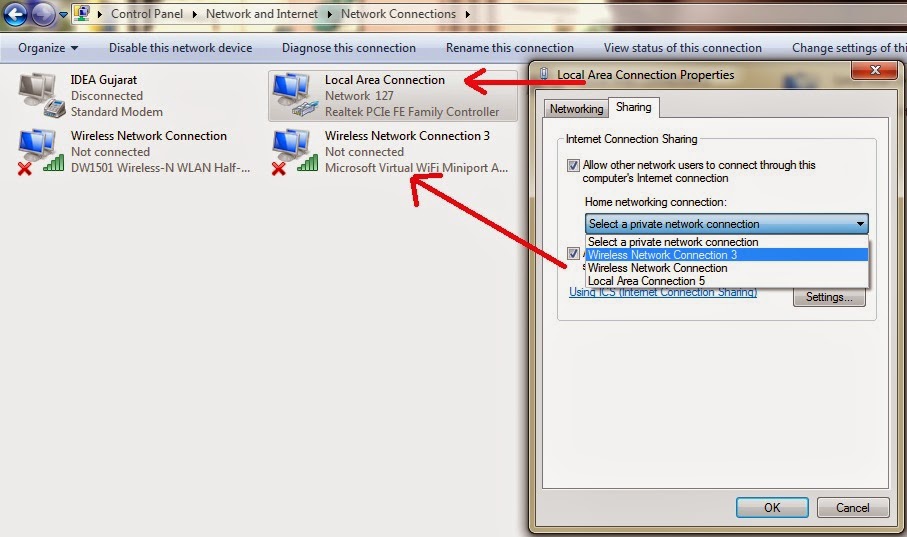

  • Go to Control Panel--> Network and Internet -> Network Connections
  • In Properties of local area connection and go to sharing tab and mark on "Allow other network users to connect through this computer's Internet connection" checkbox (as like in below screen shot). Make sure that your Wireless network connection in enable mode. then press OK. 

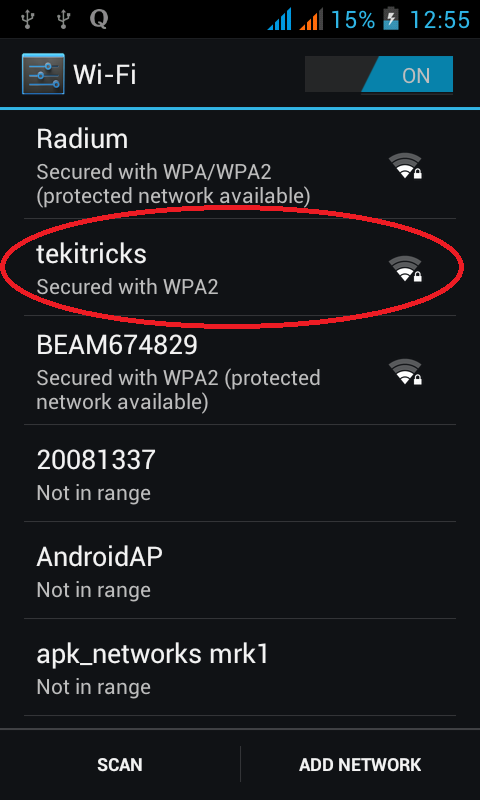
   Now you can happy to use wifi in smartphone devices.

How to generate Wi-Fi hot spot in windows 7 or 8 without any software Part-2


Creating WiFi Hot Spot:

In previous article (How to generate Wi-Fi hot spot in windows 7 or 8 without any software Part-1) I have explain what are the pre-configurations set in you system

  • Open Command Prompt In administrative mode.
  • After checking for adapter in your system please enter below code and press enter

 
Here you can use you own ssid=******* and key=******* like as you wish. Now your system has been set to allow for hosting.


  • Now again enter below code and press enter


If you got the message as same like as in the above figure then system generated WiFi hot spot. you can use
WiFi from your devices like smartphones and iPod etc.


(Common error while generating Hotspot from your system-->How to generate Wi-Fi hot spot in windows 7 or 8  without any software Part-3)

How to generate Wi-Fi hot spot in windows 7 or 8 without any software Part-1


Hello tech innovators. I am going to teach you one of the most important and useful trick. Do you know you can use your PC as Wi-Fi hot spot generator? most of don't know about this. So i want to share this knowledge with you.

Before explaining this trick we need to check our system for comparability i.e., make sure that our system contain In-built or external WiFi adapter which supports to share internet with other devices. To check this please follow the below step


  • Open windows Command prompt in administrative mode(not by double clicking on icon, right click and then Run as administrator


  •  Enter the below code and press enter


 As shown in above figure Hosted network  supported should be 'YES' then only your system will be able to generate WiFi hot spot.Now a days most of the laptop come with in-built wifi adapters.

How to generate Wi-Fi hot spot in windows 7 or 8  without any software Part-2

Saturday, August 9, 2014

USE ANDROID SMART MOBILE PHONE AS MODEM FOR PC


Hello readers, Now i am going to tell you a wonder full trick about ANDROID smart Mobile. we can use our android mobile as modes for PC to connect internet.

Method 1

1. Enable mobile data for your moble
2. Connect the mobile to PC via USB cable
3. Go to Settings --> Tethering and Portable HotSpot (In some devices go to More then  Tethering and Portable Hotspot )--> Enable USB tethering.
4. Now you can use internet from PC.

Method 2

1. Go to Settings --> Tethering and Portable HotSpot (In some devices go to More then Tethering and Portable Hotspot )--> Enable Wi-Fi hotspot 
2. From PC you can connect to Wi-Fi and use internet From in PC. here you can set password in Configure Wi-Fi hotspot settings for safety purpose.


Monday, August 4, 2014

How to remove unwanted spam emails from your Gmail

Today I am going to tell you one of the most important technique to eradicate unwanted emails coming to your Gmail account. Daily our mail filled with large number of unwanted mails. for an example in a day if we get  1000 mails out of which 10 are only important and remaining all mails are useless(spam).


Why it happens??

            when you visit any Commercial/eCommerce website, unknowingly you have given your mail ID to the website. Then these websites are send their product details and their offers to your email ID's regularly.

Solution:

1. When you opening the any unwanted email mark it as Spam
2. Some time marking the email doesn't work. so after opening any unwanted mail, at the end of the mail you can see a link like "unsubscribe here" or "click here" to un-register as shown in the below figure. after clicking on this link it will ask reason for unsubscribe give the reason and use your Gmail efficiently.


Share your knowledge
Thanks for reading

Sunday, July 27, 2014

Narrow your searches like a professional

The internet is big, really, really big.  And it keeps growing bigger every day.  If you want to search it effectively you’re going to need to develop a couple of tricks to help you narrow the search.  Here’s a few real easy ones to integrate into your next search:

Using +, - and “ “ (quotes)
to narrow your searches:

Lets say you were looking up apples on Google.com.  If you just type in “apples” you get 50 million returns.  A few more sites than you can check in an afternoon so lets narrow the search down.  Let's say that what you're really interested in phones all over the world then remove the country that your staying. because google will automatically find your geographical location and get the results to that place.


Now you will only see those apple sites that also have the word green on them.  Unfortunately we are still getting almost 33 million returned websites


To narrow the search even more lets eliminate a word.  For example, you want to search the apple mobiles in india so add the india with "+".

That reduced about almost 33 million of the returns but we still have about 5 million web pages to check out.  A final way to narrow the search is to use quotes to narrow the search to an exact phrase.  For example if you want to search the price then insert price in special quotes like as shown in the below figure.


Now I will only see websites that will tell the price of apple mobile in india  Using quotes is always a great way to narrow a search and in my example I was able to go from having 50 million web pages returned from my original search for “apples” to around 6750 by my last example.


Thank your for reading.
share the knowledge what you know