Saturday, June 13, 2015

How to hide Windows drives using Command Prompt.

Hi friends! I know you people are waiting for the tekitricks. Here I am with some interesting posts.By using this simple and useful tricks you guys can have fun with your friends

Now I am going to explain very useful an interesting trick  That is How to hide Windows drives using Command Prompt. It is very easy to hide the drives of windows by following this procedure.


If you want to hide a drive (for instance if you would like to hide Drive D)  in your laptop. then follow the below steps.

Step 1: Open the command prompt (press windows+R and type cmd).

Step 2: Then type DISKPART and press enter,you may get a window like this.

If it is asking for your permission then click 'YES'


Step 3: Now type List Volume and press enter. Then it will show you the drive details in your computer


Step 4: Now hide the drive which you would like to hide by using the following command

For an instance, select volume 2  or Select Volume D (volume number of your drive)


Generally we can use volume number or letter to select the disk

Step 5: Next type remove letter E (the drive which you want to delete).Now your selected drive is hidden .You can check it by going to My computer there you found that the selected drive is hide.


Now if you go to computer drive then Drive D will hidden.


Step 6: Now you unhide the drive by using this command
                       Assign letter E
  

After typing this you get back your drive in your My Computer folder.


Below screen is the another instance. 


Thanks for Reading!!!
Please share the knowledge that you know!!!!

Monday, May 25, 2015

Change notepad view with simple trick

In earlier post I have explained How to use browsers as Notepad (click here). Now let see how we can change the view/appearance of a browser notepad differently. While doing any work in our system, normally we use NOTEPAD for write something in it. Notepad is a general tool which is most useful and generic tool to write something in it. generally all the windows notepad tools are in same format and it really boring to write anything in it.SO What if the screen color changes when we are writing any thing on the screen? and What if it gives you line number as give us the color to words in text? Then we are so Interested to write anything on the screen. we can achieve this both by suing some script in browser. Here we do not use the notepad tool. we need a chrome browser and some code (Chrome browser will more fast and suitable for this code).


Specialty :

The specialty of the the below  code is, it will capture the typing speed and increases the color intensity  to maximum color(In our case maximum color is red )  and when you slow down you typing then it slowly decreases the color intensity and give you the color accordingly (When we stopped typing then it will slowly decreases color intensity from RED to White)


Step 1: Go to Browser(Chrome or Mozilla Fire Fox)

Note: In some versions of Mozilla and Internet explorer this version will not work because of version incompatibility

Step 2: Copy and paste the below code in the address bar of the browser and press Enter. Now browser will allowing you to write anything on the browser screen attributes provided in the code.

Code: 
Copy the entire code in below box


below are some of the screens how the color of the browser screen changes according to our typing speed

Thanks for reading!!! Please share the knowledge that you know

Tuesday, May 5, 2015

Send notifications to your smartphones from computer || Google Trick


Hello Everyone!!!  Technology is become handy. All our daily works are getting done with your hand that means with your smartphone. In this tech world there are more hidden features which are unknown to us. Sometimes we are doing some important work with your laptop/PC and you may need to remember some important meeting schedules. Then you may write this information on stick notes or any other tools which stores in on your computer itself. But what if you write this note on your smartphones to remember this information and smart phones are very easy and fast to access. So you need not to remember all this information and your phone will notify you about your work and it will act as your personal assistant.


So writing the notes in the smartphone can do it in two ways one is writing/creating the notification manually and second one is the most advanced feature and recently introduced by Google i.e., sending the notification to your smartphones from your computer itself. We all know about the first one, and the second one is a tweak which is unknown. Follow the below procedure to know about this feature.

We can use this feature by doing the below two steps

Step 1: Link your smart phone to Google account.

https://support.google.com/websearch/answer/6128427

Step 2: After doing the above step we can start using this feature

This feature includes

1. Send a note or note to self
2. Send directions to my phone
3. Set an alarm

1. Send Note or note to self:

Open www.google.com and type Send a note in the search box and click enter then the below screen will appear.


Type what ever you want to send the note to your smartphone and click on Send notification to my Phone.


2. Send directions to my phone:

Open www.google.com and type Send directions to my phone in the search box and click enter then the below screen will appear.


By default the directions source is "from your phone location" and enter the the destination location then automatically google maps will be opwn on your device.

3. Set an alarm:

Open www.google.com and type Set an Alarm in the search box and click enter then the below screen will appear.


Enter the time when you want to set the alarm on your device then automatically an alarm will be set in your smartphone. Like this we can set up n number of alarms in your smartphone from your computer


Remember you have to login into your google account which is linked to your phone.

Note: If it is not showing any pop-up under search box then add '&gl=us'  at the end of the address bar. If a box doesn't pop up with the option to send information to your phone, try refreshing the page. If you just turned on Google Now, it may take a few minutes for the box to show up

Thanks for reading!!!!..Share the knowledge that you know!!!

Friday, May 1, 2015

Get faster maps using Google LITE mode || Google Lite


Hello Everyone!!!!! When ever we go to new places we don't the exact locations of a particular place. So we generally open Google map and search the location. But sometimes this takes so much time to load the location of the page and this is because of some extra feature added to the present Google maps, like loading the 3D images and Earth view, Showing your computer’s location on the map, measuring the distance between places,coordinates of the routes, Draggable routes, and etc. These newly added features will take more time to load the page if you are having the low internet connection.

To increase the search speed and to access the location in the maps more fast, we have to remove all the features from the existed application and this can not be possible. But technically we can stop these features by using the Google LITE mode

Trick #1:

Go the below Google maps link.


In the beginning of the search box and click on menu symbol (with horizontal bars). Now you will see the LITE mode switched on your device.


Now your map page is more faster than earlier. It will exclude all the below mentioned features from the map page loading and run faster while searching any location.
  • Seeing 3D imagery and Earth view
  • Showing your computer’s location on the map
  • Setting home and work
  • Searching nearby, measuring the distance between places, and getting coordinates
  • Reporting a map data problem in Google Maps
  • Embedding a map
  • Sending a place to your car
  • Viewing My Maps in Google Maps
  • Draggable routes
If you want to revert back to the present Google maps then click on "Switch back to full maps"


Trick #2:

To get more faster  then click on the below link and you will see the old version of Google which doesn't contain any of the above features so it will be faster to search.


Generally, the previous version of Google maps are more faster than the present Google maps. So Some times its better, do not upgrade/update the changes of any app/software if its working well and good.

Note: Second trick is more faster than first trick, and it will also works in our smartphones

Thanks for reading..!!!!.. Share the knowledge that we you know..!!!!.. Thanks for reading..!!!!!!!..

Friday, April 17, 2015

Browse websites without internet || Using Chrome browser


Hello everyone!!! In Previous posts I  explained how to watch youtube videos in offline mode (i.e without internet) Imagine If we can browse any webpage in offline, that means browse any webpage without internet. Then that would be a very awesome tweak Do you believe  that, Is this possible? Answer is NO. Now imagine If we can browse the webpages in offline which were opened recently, Do you believe that, Is this possible? Answer is YES. You can browse the websites without internet by using chrome browser in your System/Mobile. This trick will work for the websites which are opened recently in chrome browser.


This trick will also useful, when you are browsing for some important websites and suddenly your internet connection is disabled in your system due to some technical issues. Then by using this below chrome feature you can reload recently opened pages and continue your work


Step 1: Open chrome browser then copy paste the chrome://flags// in the address and press enter. A list of options will appear on the screen.


Step 2: Try to search "Enable Offline Load Stale Button" by using Ctrl+F(find)


Step 3: Change the value in the drop down box from Default to Enable.

Step 4: Now browser will ask you relaunch the entire browser then click 'relaunch now'.

Step 5: Now try to open any webpage, for example www.tekitricks.blogspot.com. Now this page is stored in your local system.


Step 6: Disconnect the internet in your and reopen the earlier page that you opened i.e., www.tekitricks.blogspot.com. A normal error page will appear with some "show saved copy". After clicking on this, again the page will open from the local memory.


Note : This trick will only work for pages which are opened recently in chrome browser. Because when ever you open the any webpage, browser will store the page in the local memory(browsers local cache memory)and the size of this local memory is very less(say 2MB to 4MB). so the next time you try to open the same page without internet then browser will bring the page which stored in browsers local cache memory and display. This trick will work for all the devices which are having the chrome browser.

Thanks For Reading!!!! Share the knowledge that you know!!!!!.


Tuesday, April 14, 2015

Know someones hidden password behind the asterisks ****** ||

Hello Everyone!!! Most of the people want to know, what other people's password but as a person's confidentiality,it cover with asterisk symbol (****). So if you follow the below procedure you can able to read password under asterisks (*****). This is simple, funny and very easy to learn. People who are having web technologies knowledge can easily understand this trick.


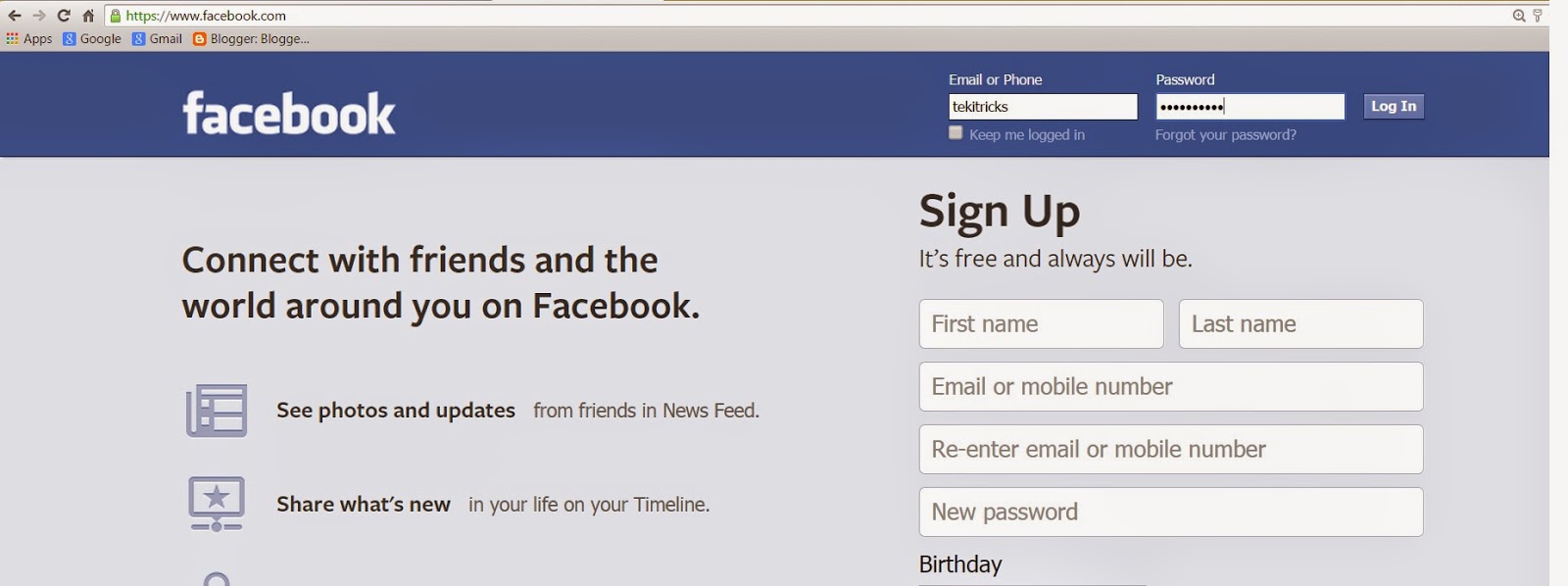
Step 1 : Open any browser ( Chrome or Internet Explorer or Mozilla Firefox etc., )in your computer and go to any log-in page and sign-in. Lets consider Facebook login page. Go to www.facebook.com and enter username and password. As you know whatever you type in the password filed, it shows the asterisks (*****) symbols.

Note: Don't press enter after you entered the username and password.


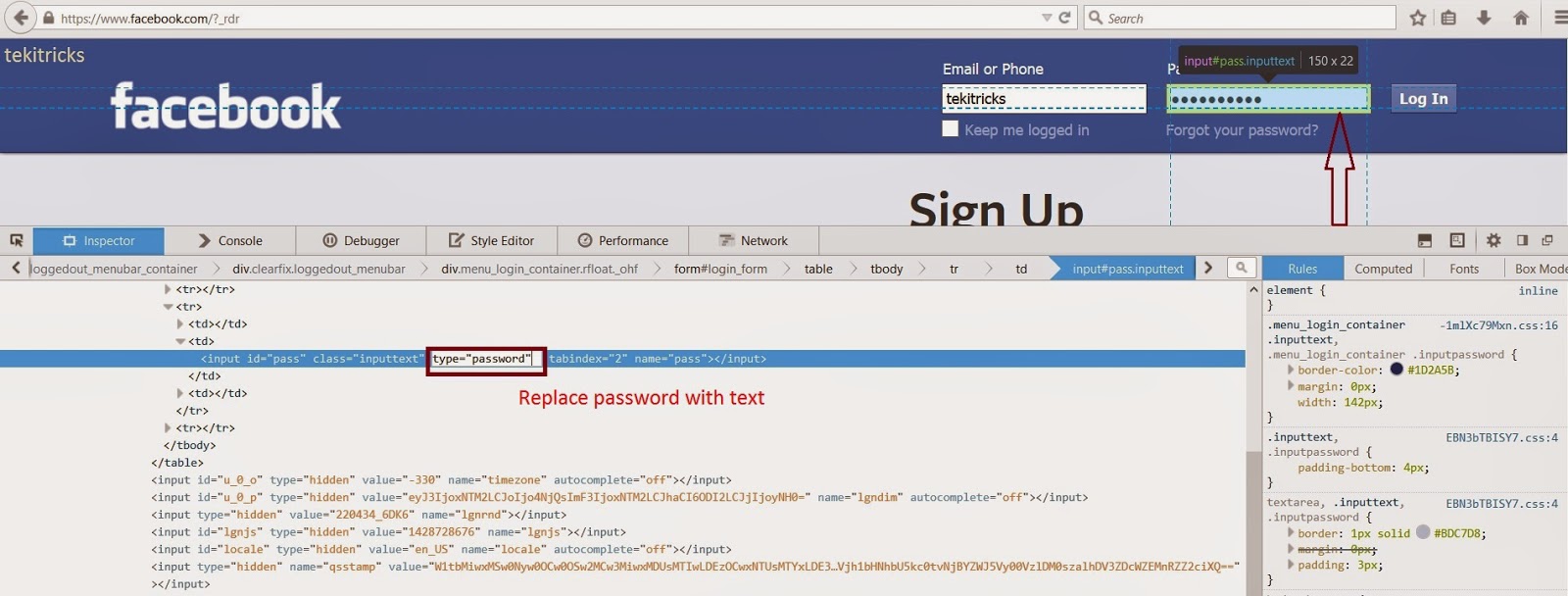
Step 2: Press F12 . A code (debugging)window open on the right side or bottom parts of the browser.

Step 3: Go to Elements/Inspector tab (Here I am using Chrome browser) in debugging window. Then try to search type=”password” using the Ctrl+F (Find) command. Because of this command your password will appears in asterisks (****).


Step 4: Replace the type=”password” with type=”text” and then press Enter. Immediately your password will appear in text format in that field.


Thanks for reading!!! Share the knowledge that you know!!!! Keep reading !!!